You want to play with your friends. It sounds simple. You open Minecraft, click "Multiplayer," and then you realize you’re staring at a wall. Unless you’re on the same Wi-Fi, you can’t just "see" each other. You need a dedicated space. Honestly, learning how to make a Java Minecraft server is a rite of passage for every PC gamer, but most people give up halfway through because of a scary thing called Port Forwarding.
It’s not just about downloading a file and clicking "Go." If you want a server that doesn't lag into oblivion every time someone breaks a block, you need to understand how Java actually handles memory. Minecraft is notoriously single-threaded for most of its logic. This means even if you have a massive 16-core CPU, the server might still stutter if that single core is weak.
The Brutal Reality of Hosting on Your Own PC
Hosting at home is free, which is the best price. But your PC becomes the sacrifice. When you run a server on the same machine you use to play, you’re fighting for resources.
First, you need the Java Development Kit (JDK). Don't just grab the "standard" Java you used back in 2015. For modern versions of Minecraft (1.18 and up), you specifically need JDK 17 or 21. If you try to run a 1.20.4 server on Java 8, it won't just run poorly—it won't start at all. You’ll get a "Version Mismatch" error that looks like gibberish to the untrained eye.
Getting the Server Software Right
You have choices. Most beginners grab the "Vanilla" server.jar from Mojang’s website. Don't do that. Vanilla Minecraft is poorly optimized for servers. Instead, look at PaperMC or Pufferfish. These are "forks" of the original code. They fix bugs that Mojang hasn't touched in years and allow you to toggle settings that prevent entities (like 500 cows in a pit) from crashing your entire neighborhood.
Basically, you download the jar, put it in a folder, and run it. The first time, it’ll fail. It’s supposed to. It generates a file called eula.txt. Open it, change eula=false to eula=true, and save it. You’ve just legally agreed to Mojang’s terms. Now, when you run it again, the world starts generating.
How to Make a Java Minecraft Server Accessible to Friends
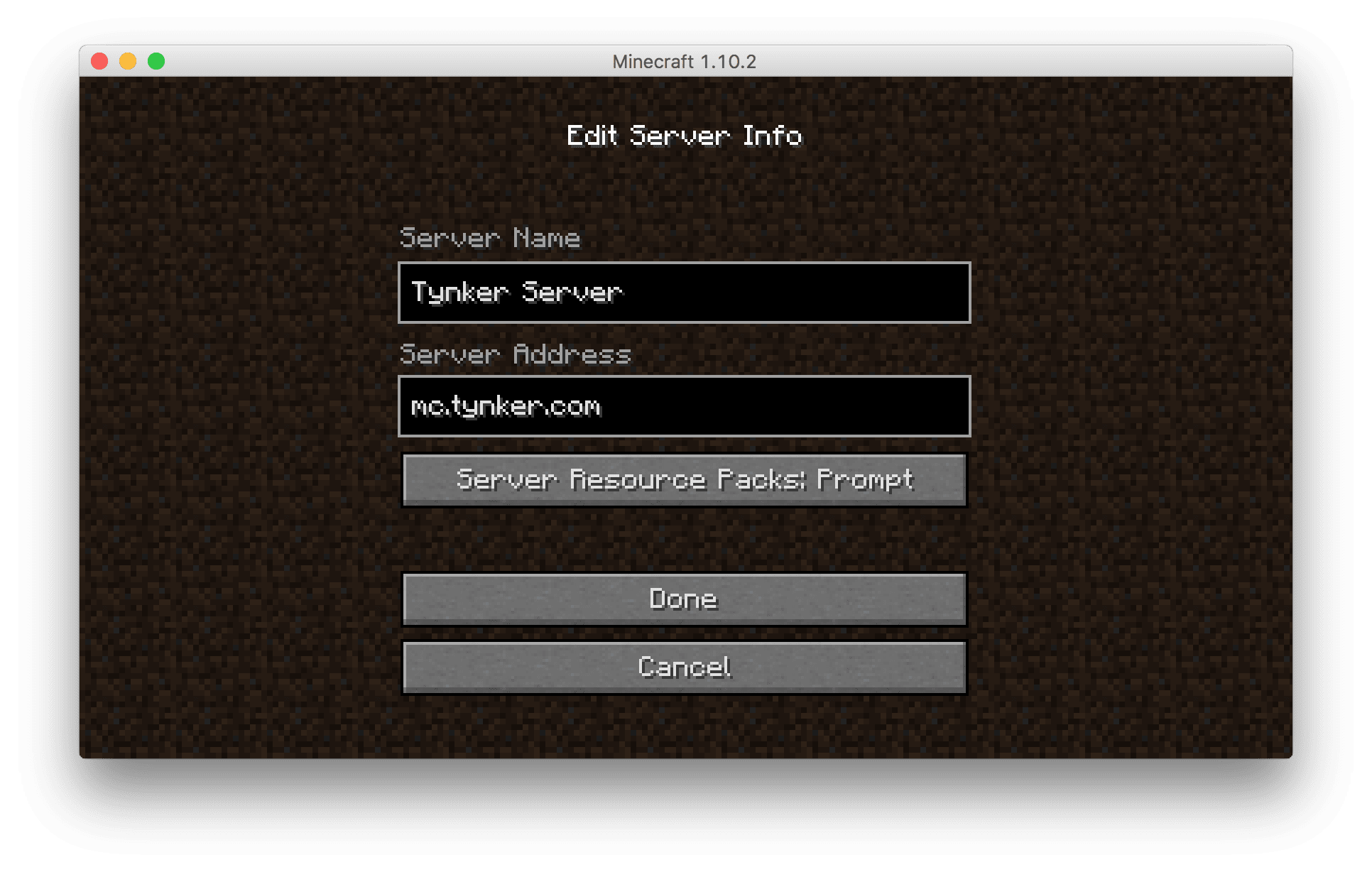
This is where the frustration peaks. Your server is running. You can join it by typing localhost in your Minecraft client. But your friend across town? They can’t.
To let them in, you have to talk to your router. This is Port Forwarding. You need to tell your router that any traffic coming in on port 25565 should be sent directly to your computer’s internal IP address.
Every router interface is different. Some look like they were designed in 1998; others are sleek mobile apps. You’re looking for "Advanced Settings" or "Gaming."
- Find your Internal IP (type
ipconfigin Command Prompt). - Set the Start and End Port to 25565.
- Set the Protocol to TCP/UDP (or "Both").
A word of caution: When you give someone your IP address, you are giving them the digital equivalent of your home address. Only share it with people you actually trust. If you're planning on making a public server for strangers, stop right now. Do not host that on your home network. You’ll get DDoS attacked, and your home internet will go dark. For public projects, use a VPS or a dedicated Minecraft host like Bloom.host or PebbleHost.
RAM: The Great Misconception
Everyone thinks more RAM equals a faster server. It doesn't.
If you assign 16GB of RAM to a server with only three players, you might actually make it slower. This is because of "Garbage Collection." Java has to periodically clean up the RAM. If the "trash can" is huge, it takes the "janitor" longer to empty it, causing a massive lag spike every few minutes.
For a small group of 5 players, 4GB is the sweet spot. If you’re running 100+ mods? Sure, bump it to 8GB. But 32GB? You’re just wasting electricity and CPU cycles. Use Aikar’s Flags—these are specific startup commands that optimize how Java handles memory. They are legendary in the community for a reason.
java -Xms4G -Xmx4G -XX:+UseG1GC -XX:+ParallelRefProcEnabled ... (and so on)
Essential Plugins You Actually Need
If you went with PaperMC, you can use plugins. Don't go overboard. Too many plugins turn your server into a bloated mess.
- LuckPerms: This is the industry standard for permissions. If you want to be the "Admin" and have a shiny prefix in chat, this is how you do it.
- CoreProtect: This is non-negotiable. Someone will burn down a house. It might be an accident; it might be "griefing." CoreProtect lets you type a command and roll back that specific area to exactly how it looked ten minutes ago.
- EssentialsX: It provides the basics like
/home,/spawn, and/warp.
Troubleshooting the "Can't Connect" Error
It happens to everyone. You did the port forwarding, the EULA is true, the firewall is off, and yet... "Connection Refused."
Check your Windows Firewall. Windows loves to block Java. You need to go into "Allow an app through firewall" and make sure every instance of "Java(TM) Platform SE binary" has both Private and Public boxes checked. If that fails, check if you are behind a CGNAT. Some ISPs (like many mobile home internet providers) don't give you a unique public IP. If you're on a CGNAT, traditional port forwarding is impossible. You’ll have to use a tool like Playit.gg or Tailscale to create a tunnel.
Keeping the World Alive
A server is a living thing. If you leave it running 24/7 on your laptop, that laptop is going to get hot. Really hot.
Automate your backups. Use a plugin or a simple script to copy your world folder to a different drive once a day. Hard drives fail. SSDs wear out. Losing a year of progress on a massive build because of a corrupted chunk is a heartbreak you don't want.
Also, keep an eye on your TPS (Ticks Per Second). A perfect server runs at 20.0 TPS. If that number drops to 15.0, everything starts to feel like slow motion. This is usually caused by too many entities or "heavy" chunks. Tools like Spark can show you a profile of exactly what is eating your CPU. Usually, it's a massive villager trading hall or a redstone clock someone forgot to turn off.
Practical Next Steps
Now that the server is physically running and your friends can join, your work isn't done.
- Test the boundary: Walk a few thousand blocks out. If the server hangs, you need to pre-generate your world. Use a plugin called Chunky. It loads the world chunks before players get there, so the CPU doesn't have to work as hard during gameplay.
- Set up a whitelist: Type
/whitelist onand then/whitelist add [friendname]. This prevents random people from guessing your IP and joining to ruin your fun. - Configure your
server.properties: Decide if you want "hard" difficulty (essential for good villager trades) and if you want to enable or disable PvP.
Starting a server is basically a crash course in networking and system administration disguised as a block game. It’s annoying, it’s fiddly, and something will probably break next Tuesday. But when you and your friends finally see those login messages in the console, it’s worth the headache.